

How to Turn Off Tamper Alert on a TTLock Smart Lock — 3 Steps
Posted by Jim Noort on 30th Apr 2025
How to Turn Off Tamper Alert on a TTLock Smart Lock
Tamper Alert should be disabled on all TTLock-based devices — here’s the three-step procedure to turn it off in the app.
If your TTLock-based smart lock is sending repeated tamper notifications — often with nothing physically wrong — the Tamper Alert setting in the TTLock app is almost certainly the cause. This feature appears in the app on all TTLock-connected devices, but it should be switched off on every lock, regardless of brand or model.
The fix takes under a minute and requires no tools — just the TTLock app and administrator access to the lock.
This guide covers:
- Why Tamper Alert should always be disabled on TTLock devices
- The three-step procedure to turn it off in the TTLock app
- What to do if alerts continue after disabling
For a full explanation of what Tamper Alert is, why it does not function correctly on modern TTLock hardware, and how it differs from the incorrect PIN attempt alarm, see our full explainer on smart lock tamper alerts.
Why Tamper Alert Should Always Be Disabled
Tamper Alert is a legacy TTLock platform feature originally designed for a small number of older imported lock models that contained dedicated tamper detection hardware. The TTLock app still shows the toggle on all connected devices — but the required internal sensor is absent from virtually all modern TTLock-based hardware, including every brand sold through Gold Coast Smart Locks (McGrath, Lockton, Austyle and others).
When the feature is enabled on hardware that lacks the required sensor, the app generates repeated phantom tamper notifications — alerts reporting an event that never occurred. The only correct setting is Off, on every device.
If you want to understand exactly why this happens and how the feature differs from the lock’s built-in incorrect PIN alarm, see our tamper alert explainer.
Turn Off Tamper Alert — Step by Step
You will need the TTLock app installed on your phone and administrator access to the lock. Sub-users and eKey recipients do not have access to the Settings menu — the procedure must be completed by the account owner who originally paired the lock.
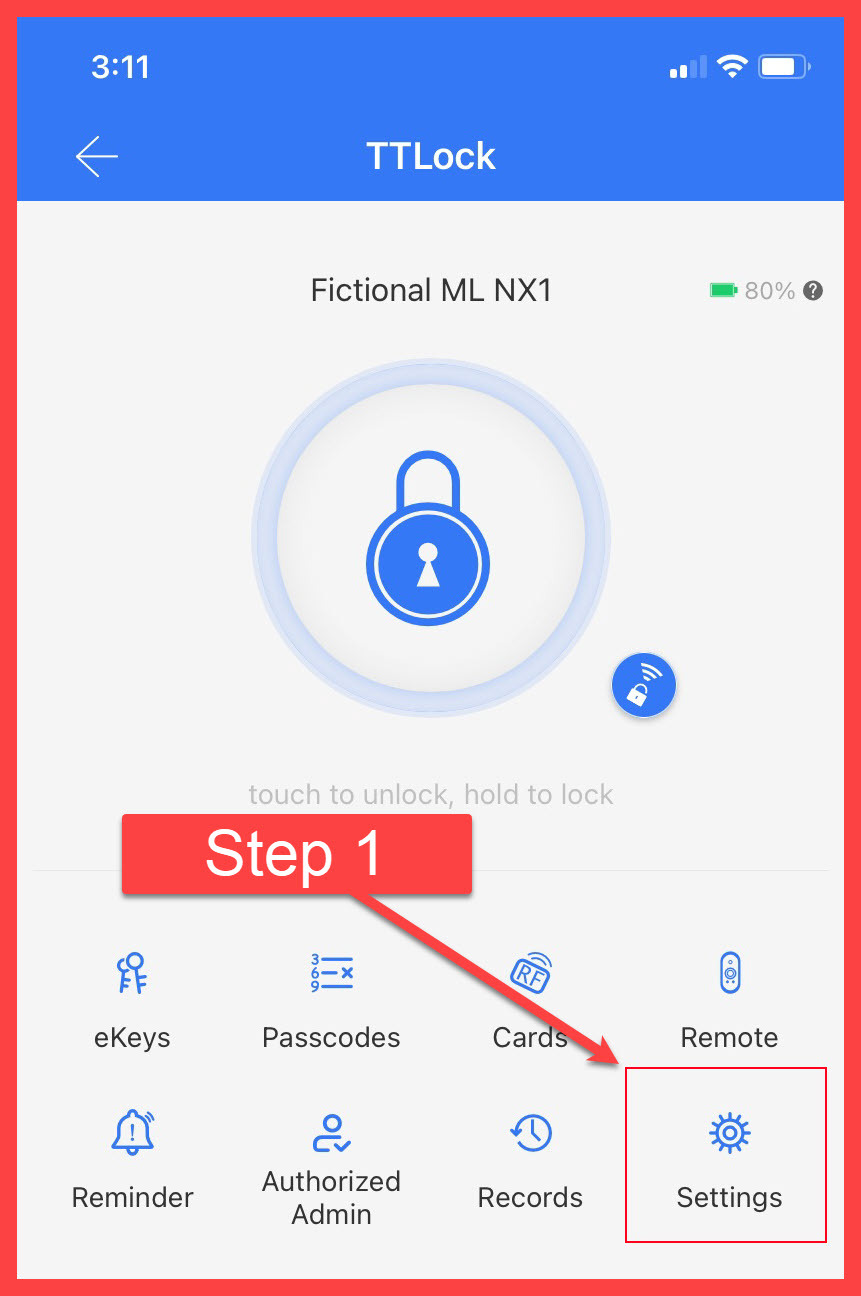
Step 1 — Open the lock in the TTLock app and tap Settings
Open the TTLock app and select your lock from the device list. On the lock’s main control screen, scroll down to the icon grid and tap Settings (the gear icon, bottom-right of the grid).
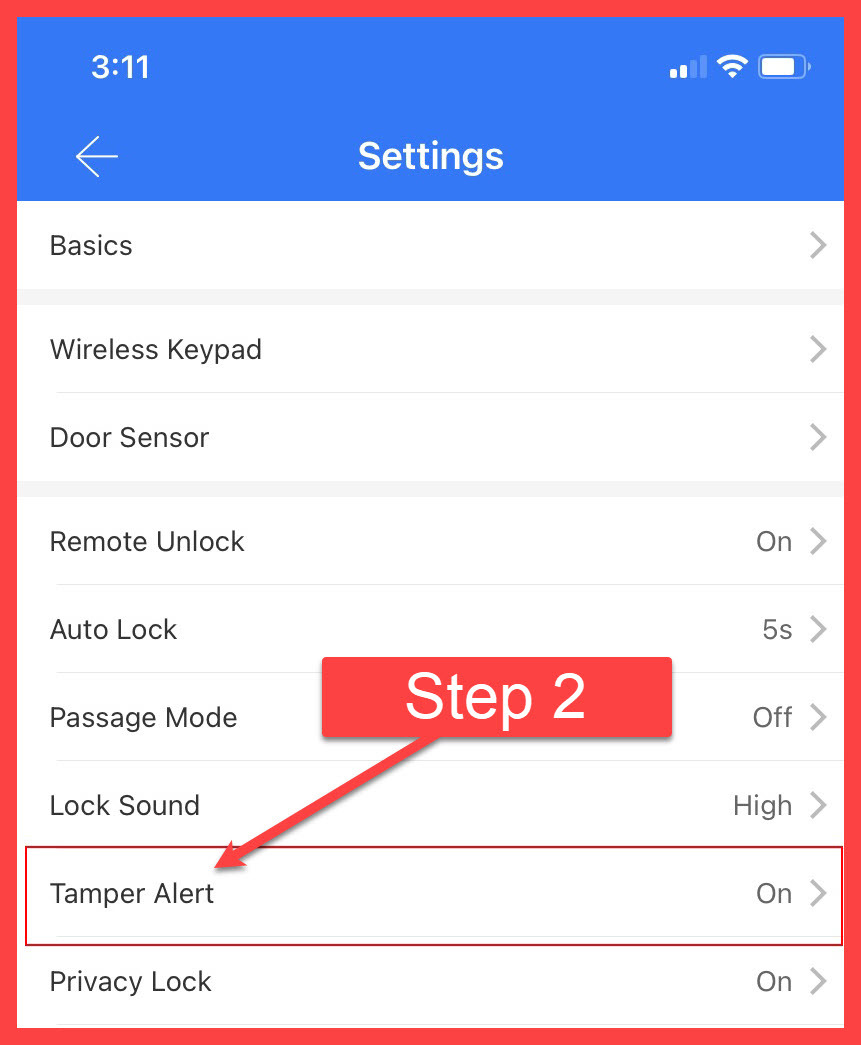
Step 2 — Tap Tamper Alert in the Settings list
Inside Settings, scroll down until you see Tamper Alert. The current status is shown on the right side of the row. If it reads On, tap the row to open the tamper alert control screen.
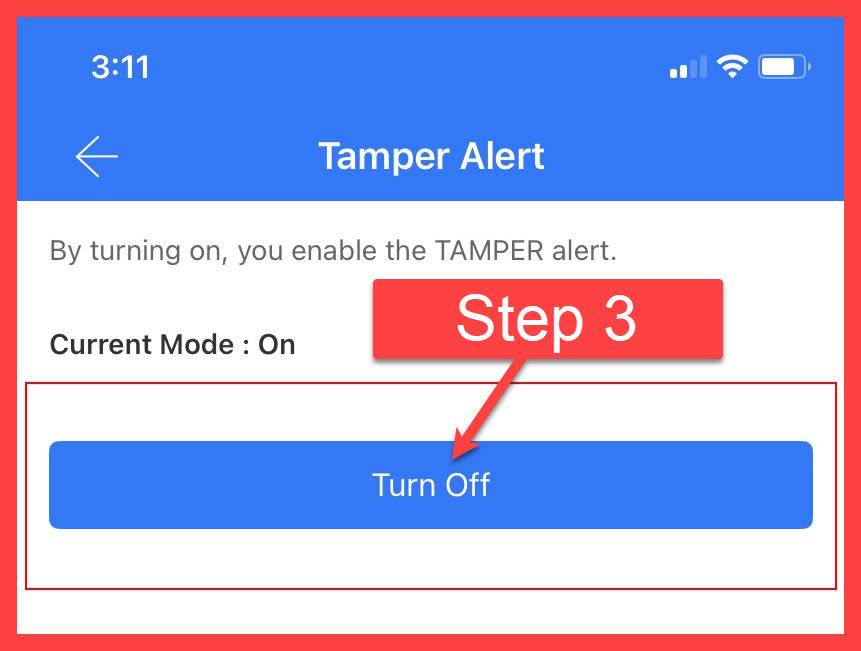
Step 3 — Tap Turn Off
The Tamper Alert screen displays the current mode and a single action button. With the mode showing On, tap Turn Off. The app confirms the change and the status updates to Off. The procedure is complete.
If Alerts Continue After Disabling
Once Tamper Alert is set to Off, phantom notifications should stop. If you continue to receive alerts or the lock is still behaving unexpectedly, check the following before changing any other settings:
- Multiple admin accounts — if more than one account has administrator access to the lock, another admin may have re-enabled the feature. Confirm the setting is Off under every admin account.
- Gateway connectivity — an intermittent gateway connection can prevent setting changes from reaching the lock, or cause the lock to report errors independently. See our guide on why smart locks sometimes drop off WiFi for diagnostic steps.
- Gateway model — older gateways may not relay setting changes reliably if their signal to the lock is weak. Our comparison of McGrath G2 vs G3 vs G4 vs G5 gateways covers the differences in range and reliability.
- Other lock behaviour — if the lock is beeping or showing errors unrelated to tamper alerts, contact Gold Coast Smart Locks for a diagnosis before making further changes.
For common questions about tamper alerts specifically, see Chapter 13 FAQ — Tamper Alert. For broader troubleshooting beyond app settings, see Chapter 12 — Installation & Troubleshooting.
Related Guides
Full explainer on how the feature works, why modern TTLock hardware cannot support it, and how it differs from the incorrect PIN attempt alarm.
Gateways, property management software, and how to set up fully automated PIN delivery for short-stay rentals using McGrath and TTLock.
2.4 GHz vs 5 GHz, band steering issues, and how to diagnose a gateway that keeps losing its connection to the TTLock cloud.
Comparison of all four McGrath gateway generations — WiFi bands, Ethernet, 4G fallback, lock capacity, and which suits your situation.
Another commonly misunderstood TTLock feature — what Secure Lock does, and why accidentally enabling it can lock out everyone including the owner.
The canonical guide to smart lock installation and troubleshooting — covers common setup errors, notification behaviour, and when to call a locksmith.
Still Getting Alerts You Can’t Resolve?
If disabling Tamper Alert hasn’t stopped the notifications, our team can identify the cause before you change any other settings.
Ask an ExpertVisit Australia’s leading Smart Lock showroom and workshop:
Gold Coast Smart Locks
9/2 Prosper Crescent
Burleigh Heads, QLD
See working models, compare gateways, and get real advice before you commit.